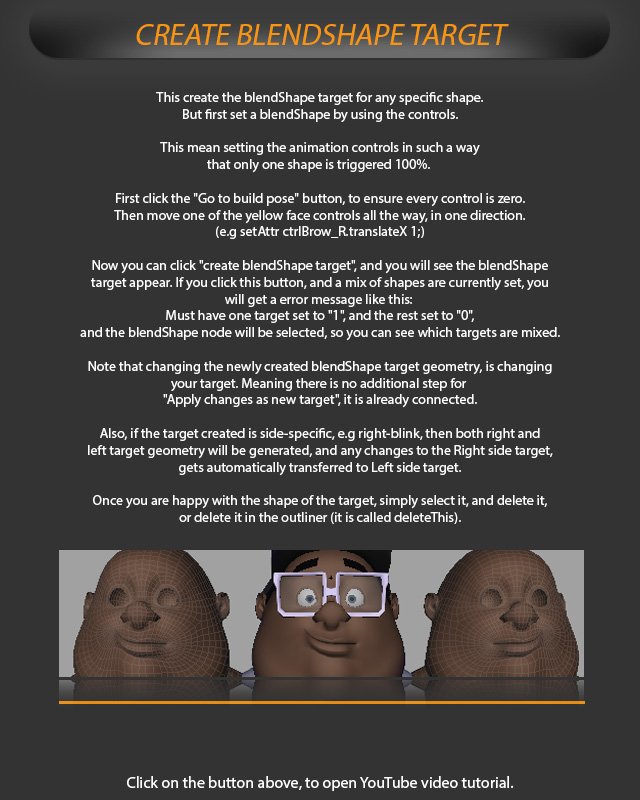
Edit Blend Shapes Create
Create a BlendShape target for any specific shape, but first set a BlendShape by using the controls.
Set the animation controls so that only one shape is triggered 100%.
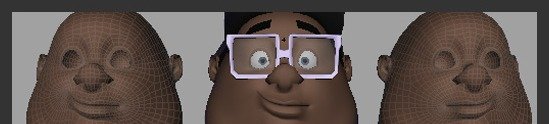
First click the “Go to build pose” button to ensure every control is zero. Then move one of the yellow face controls all the way in one direction, for example: setAttr ctrlBrow_R.translateX 1.
Click “Create BlendShape target” and the BlendShape target appears. If the shape is currently set, you will get an error message like this: “Must have one target set to 1”, and the rest set to “0”. The BlendShape node will be selected so you can see which targets are mixed.
Changing the newly created BlendShape target geometry changes the target itself, so there is no additional step for “Apply changes as new target”; it is already connected.
If the target is side-specific, such as right-blink, both right and left target geometry will be generated. Any changes to the right-side target are automatically transferred to the left-side target.
Once you are happy with the target shape, simply select it and delete it, or delete it in the Outliner; it is called deleteThis.