Edit Driving System
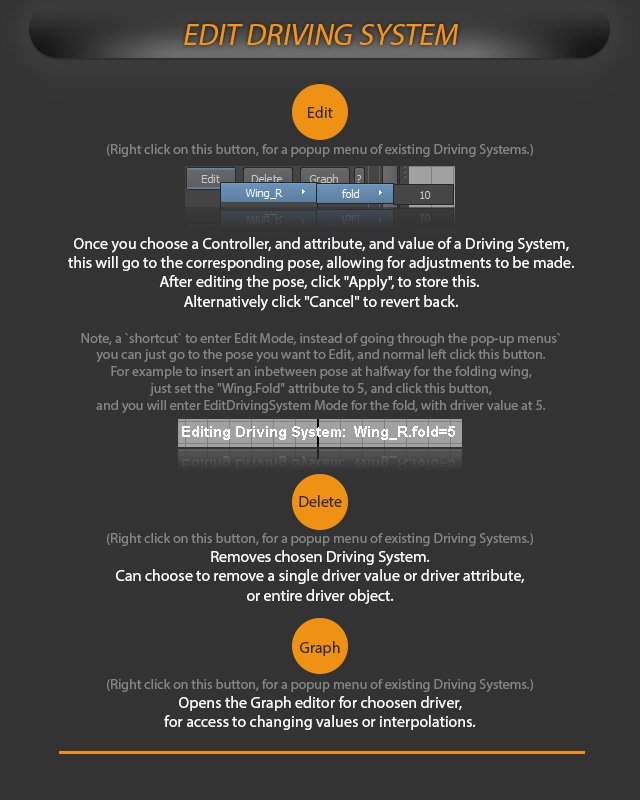
Edit, delete, or graph existing Driving Systems.
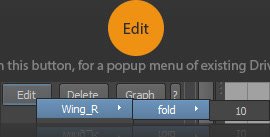
Right click on this button, for a popup menu of existing Driving Systems.
Once you choose a Controller, and attribute, and value of a Driving System, this will go to the corresponding pose, allowing for adjustments to be made.
After editing the pose, click “Apply”, to store this.
Alternatively click “Cancel” to revert back.
Shortcut edit mode
Note, a “shortcut” to enter Edit Mode, instead of going through the pop-up menus: you can just go to the pose you want to Edit, and normal left click this button.
For example to insert an inbetween pose at halfway for the folding wing, just set the “Wing.Fold” attribute to 5, and click this button, and you will enter EditDrivingSystem Mode for the fold, with driver value at 5.

Delete
Right click on this button, for a popup menu of existing Driving Systems.
Removes chosen Driving System.
Can choose to remove a single driver value or driver attribute, or entire driver object.
Graph
Right click on this button, for a popup menu of existing Driving Systems.
Opens the Graph editor for choosen driver, for access to changing values or interpolations.